

Sometimes a video moves too fast.
Maybe you’re trying to catch a split-second detail in a sports highlight. Maybe you’re studying a guitar technique, analyzing an animation, checking a magic trick, or trying to read a tiny piece of text that flashes on screen for half a second.
Whatever the reason, pausing the video isn’t always enough. That’s where frame-by-frame viewing becomes incredibly useful.
YouTube has a built-in feature that lets you move through videos one frame at a time. It’s surprisingly simple, yet many people never discover it. Once you know how it works, you can inspect videos with a level of precision that normal playback just can’t provide.
Let’s look at exactly how to go frame by frame on YouTube and when it can make a real difference.
What Does Frame-by-Frame Mean?
Videos aren’t actually moving images. They’re a series of individual pictures shown rapidly one after another.
Most YouTube videos run at 24, 30, or 60 frames per second. That means every second contains dozens of separate images.
When you move frame by frame, you’re advancing through those images one at a time instead of jumping several seconds forward or backward.
Think about watching a basketball highlight. A player releases the ball, defenders react, and the shot goes in. It all happens quickly. Frame-by-frame viewing lets you inspect every tiny movement between those moments.
For people learning skills from videos, this can be incredibly helpful.
The Easiest Way to Go Frame by Frame on YouTube
The simplest method works directly from your keyboard.
First, pause the video.
Once the video is paused:
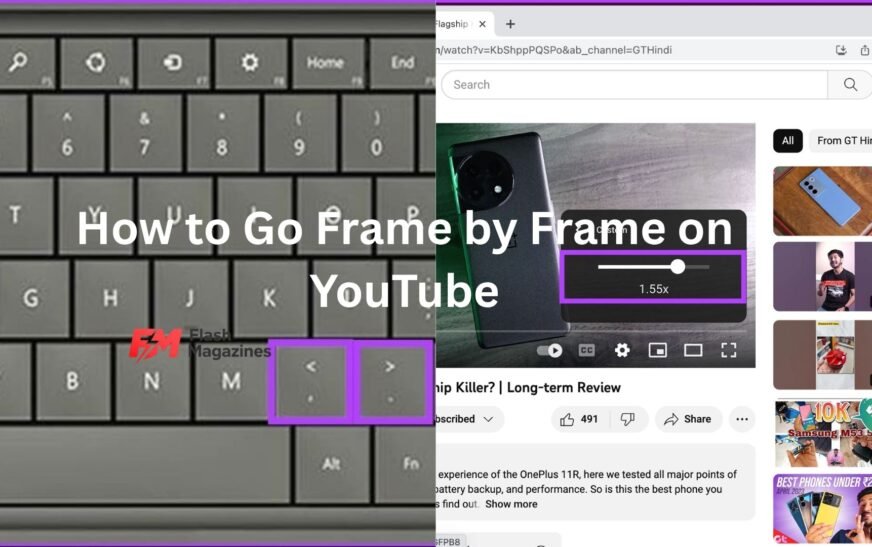
- Press the period key (.) to move forward one frame.
- Press the comma key (,) to move backward one frame.
That’s it.
Many users accidentally discover this feature years after using YouTube daily. It’s hidden in plain sight.
A small detail matters here: the video must be paused first. If the video is still playing, those keys won’t advance frames the way you expect.
For example, imagine you’re watching a slow-motion baseball swing and want to see the exact moment the bat contacts the ball. Pause the video near that point, then tap the period key repeatedly until you reach the precise frame you’re looking for.
Each press advances only a single frame.
Why the Keyboard Method Works So Well
The frame controls give you much more accuracy than dragging the timeline.
Dragging the progress bar is fine when you’re skipping ahead several minutes. It isn’t great when you’re looking for something that appears for a fraction of a second.
Let’s be honest: trying to stop a fast-moving video at exactly the right moment using only the mouse can be frustrating.
You overshoot.
Then you go back.
Then you overshoot again.
Frame stepping removes that problem entirely.
Once you’re close to the scene you want, each key press gives precise control. No guessing involved.
Can You Go Frame by Frame on Mobile?
This is where things get a little less convenient.
The YouTube mobile app doesn’t officially support the same keyboard-based frame stepping available on desktop browsers.
If you’re watching on an iPhone or Android device, you generally won’t find dedicated frame-by-frame buttons inside the standard app.
There are a few workarounds.
One option is to pause the video and slowly drag the seek bar. Newer versions of YouTube often show preview thumbnails while scrubbing through the timeline. This helps you get closer to specific moments.
The experience isn’t as precise as true frame stepping, but it’s often good enough for casual viewing.
If exact frame analysis is important, using a computer remains the better choice.
Using Frame-by-Frame for Sports Analysis
Sports fans might get the most value from this feature.
Consider a close soccer offside call. During live playback, the action happens almost instantly. Frame stepping lets you inspect the exact position of players when the pass is made.
The same idea applies to:
- Baseball swings
- Tennis serves
- Golf swings
- Basketball shots
- Football catches
A lot of sports debates exist because the eye can’t reliably process every detail at full speed.
Frame-by-frame viewing slows everything down and lets you see what actually happened.
Of course, YouTube video quality and frame rate can still limit what you’re able to determine. But it often reveals details that normal playback misses completely.
Learning Skills Through Frame Analysis
One of the smartest uses of frame stepping has nothing to do with entertainment.
It’s learning.
People often watch tutorials repeatedly because they can’t quite see what the instructor is doing.
Take guitar lessons as an example.
An instructor demonstrates a complicated finger movement. At normal speed, it looks easy. When you try it yourself, you’re not sure where your fingers should go.
Moving frame by frame lets you inspect hand placement in detail.
The same approach works for:
- Drawing tutorials
- Dance instruction
- Martial arts demonstrations
- Fitness exercises
- Cooking techniques
- DIY projects
Sometimes the smallest movement is the most important part of the lesson.
Frame-by-Frame and YouTube Shorts
YouTube Shorts can be a little trickier.
On desktop, the frame-stepping keyboard shortcuts may still work depending on how the Short is being viewed and whether you’re watching it within YouTube’s standard video player interface.
If you’re having trouble, try opening the Short as a regular video page when possible.
The standard player tends to offer more consistent control options than the dedicated Shorts interface.
Since YouTube updates features regularly, behavior can vary slightly over time.
Other Useful YouTube Keyboard Shortcuts
Once people discover frame stepping, they often start using other keyboard shortcuts too.
A few are worth remembering.
Spacebar
Press the spacebar to play or pause the video.
Simple, but extremely useful when you’re reviewing footage repeatedly.
Arrow Keys
The left and right arrow keys jump backward or forward by several seconds.
This helps you quickly get close to the section you want before switching to frame stepping.
J, K, and L
These controls are favorites among frequent YouTube users.
- J rewinds
- K pauses or plays
- L fast-forwards
They’re especially useful when reviewing long videos.
A combination of these shortcuts and frame stepping gives you very precise control over playback.
Why Frame Stepping Sometimes Doesn’t Work
Occasionally people try the keyboard shortcuts and nothing happens.
Usually there’s a simple reason.
The most common issue is that the video isn’t paused.
Another possibility is that the browser focus isn’t on the video player itself. Clicking directly on the video before using the keyboard shortcuts often fixes the problem.
Browser extensions can also interfere with YouTube controls from time to time.
If the feature still doesn’t respond, try refreshing the page or testing it in another browser.
In most cases, the built-in frame controls work without any special settings.
Does Video Quality Affect Frame-by-Frame Viewing?
Absolutely.
Higher video quality generally makes frame analysis much easier.
Imagine trying to identify a license plate, a facial expression, or a small object in a blurry 360p video. Even if you advance frame by frame, the detail may simply not exist in the footage.
Switching to HD or 4K quality can help reveal details that lower resolutions hide.
Frame rate matters too.
A 60 frames-per-second video contains more visual information than a 24-frame-per-second video. When stepping through frames, movement often appears smoother and more detailed.
That’s why sports footage and gaming videos frequently benefit from higher frame rates.
More frames mean more opportunities to inspect what’s happening between major actions.
When Frame-by-Frame Viewing Becomes Surprisingly Useful
Most people search for this feature because of one specific problem.
Then they end up using it for all sorts of things.
You might start by trying to identify a hidden object in a movie trailer.
Later you’re checking a product demonstration.
Then you’re studying camera techniques from a filmmaking channel.
A friend once spent fifteen minutes analyzing a viral video because he was convinced he spotted an editing mistake. Frame stepping confirmed he was right. It wasn’t a life-changing discovery, but it shows how useful precise video control can be when curiosity kicks in.
The ability to slow down and inspect details changes the way you watch videos.
You stop relying on quick impressions and start seeing what actually appears on screen.
A Few Limitations to Keep in Mind
Frame stepping isn’t magic.
If the original video is blurry, compressed, or poorly recorded, advancing frame by frame won’t create new detail.
Some videos also contain motion blur. Even when you’re viewing individual frames, fast-moving objects may still look smeared.
Video creators sometimes edit scenes with cuts that occur between frames. In those cases, you may not find the exact visual moment you’re hoping to inspect.
Still, frame stepping remains one of the most useful hidden features available in YouTube’s desktop player.
Final Thoughts
Knowing how to go frame by frame on YouTube gives you far more control over what you’re watching. Instead of repeatedly pausing and guessing, you can move through a video one image at a time and examine exactly what’s happening.
The process is simple: pause the video, press the period key (.) to move forward one frame, and use the comma key (,) to move backward.
That’s all there is to it.
Whether you’re studying a sports play, learning a new skill, analyzing a movie scene, or satisfying your curiosity about a split-second detail, frame-by-frame viewing can reveal things that normal playback easily misses. Once you start using it, it’s one of those shortcuts that’s hard to forget.